I have spent countless hours testing devices to find what truly helps people who spend long days at a computer. My reviews weigh comfort, shape, and performance so you can choose the best option for daily work.
The Logitech MX Vertical stood out in my testing as a top-rated choice that reduces repetitive strain. WIRED editor Julian Chokkattu and GearLab lead tester Austin Palmer both note that a natural handshake position changes how users move the hand and arm.
What actually made a difference in my wrist comfort over time
I’ve tested several ergonomic mice while working long hours at the computer, and at first I expected instant relief just by switching devices. What I noticed instead was that improvement came gradually, especially when I combined the mouse with better habits. Simply changing the shape helped, but it was only when I adjusted how I positioned my hand and took short breaks that the real difference showed. That experience made it clear to me that the mouse is important, but how you use it matters just as much.
From my experience, comfort depends heavily on fit. I’ve tried well-reviewed models that didn’t work for me simply because they didn’t match my hand size or grip style. I’ve learned to prioritize how natural the mouse feels during a full work session, not just during a quick test. Small details like button reach and wrist angle can have a big impact after a few hours.
I’ve noticed that reducing strain is less about finding a “perfect” device and more about building a setup that supports your natural movement.
If there’s one practical step I recommend, it’s to observe how your hand feels after a normal workday and adjust from there. Try small changes—like repositioning your mouse or tweaking sensitivity—before switching devices again. These adjustments often improve comfort more than constantly replacing equipment.
In this guide I’ll show how the right ergonomic mouse can improve long-term health and daily comfort. I’ll explain options, share what to look for, and help you pick a mouse that fits your hand and work style.
Key Takeaways
- I tested many devices to find top performers that reduce repetitive strain.
- Shape and comfort matter as much as technical performance.
- The Logitech MX Vertical is a standout pick for neutral hand position.
- Choosing the right option can improve daily computer use and long-term health.
- Expert voices back the importance of proper posture and design.
Understanding the Importance of Ergonomic Mice for Wrist Pain
In my testing, I discovered that posture and device shape determine whether a day ends sore or comfortable. Poor office setup often leads to real musculoskeletal problems, as physical therapists warn.
The Link Between Posture and Pain
Steve Meagher, PT, CEAS explains that bad office ergonomics can cause disorders over time. Repetitive motions and a pronated forearm make tendonitis and strain more likely.
“Proper alignment of the hand and wrist helps minimize injury risk during extended use.”
Why Standard Mice Fall Short
Standard mice often force the forearm into an unnatural position. That pronation increases stress on tendons as people work long hours.
- I found that device shape is crucial to keeping a neutral position.
- The Logitech MX Vertical mimics a natural handshake to reduce forearm pronation.
- Choosing an ergonomic mouse that supports your hand is one of the best options to cut daily strain.
Common Causes of Wrist Strain and Carpal Tunnel
Daily, I saw how repeated clicking and awkward hand angles add up to real medical issues.
Carpal tunnel syndrome often comes from repetitive movement and poor wrist posture while using a mouse. Over time, that constant motion can inflame tendons and pinch nerves in the hand.
Mark Middlesworth, MS, ATC, CEES notes that many users experience life-changing relief after switching to non-traditional mice.
“Changing how you hold and move the mouse can reduce nerve compression and restore function.”
A poorly designed computer workstation makes strain worse. Bad desk height, awkward reach, and long uninterrupted work sessions speed up damage and can reduce hand function.
My research shows that switching to an ergonomic mouse and improving desk setup are practical controls. Many people I worked with saw less strain and better comfort within weeks.
Key Features to Look for in an Ergonomic Mouse
My priority is how a mouse performs in real tasks, so I test scrolling, buttons, and tracking first.
Scroll Wheel Functionality
High-quality scroll wheel makes long documents easier to navigate. I note whether a wheel is silent and precise like the Logitech MX Master 3S.
Dual-mode wheels, such as on the Keychron M6, switch between standard and infinite scrolling. That option speeds up both line-by-line work and big jumps.
Programmable Buttons
Extra buttons let you assign complex tasks to a single click. Models like the Razer Basilisk V3 35K show how programmable controls boost workflow.
Side buttons should be reachable without changing your hand shape. Good software, such as Logi Options+, makes customization painless.
Surface Compatibility
Track performance matters. I check a mouse on fabric, wood, and glass—MX Master 3S tracked perfectly on glass during my tests.
- Tip: Choose a design that keeps fingers relaxed and reduces repetitive movement.
Why Vertical Mice Are a Game Changer
Switching to a vertical design changed how my arm rested and how long I could work without discomfort. The angle makes a big difference in natural motion and fatigue.
The Logitech MX Vertical places the arm in a handshake position that cuts forearm pronation and reduces strain. I found the posture shift felt immediately more natural than a flat mouse.
The Logitech Lift is a smaller vertical option that suits users with smaller hands. For budget buyers, Steven Herrenbruck recommends the Anker wireless vertical mouse as a solid entry point.
“Vertical designs change the hand angle to reduce compressive forces and support a neutral position.”
| Model | Price | Best Feature |
|---|---|---|
| Logitech MX Vertical | $120 | Handshake position; reduces forearm pronation |
| Logitech Lift | $80 | Smaller shape for compact hands |
| Anker Wireless Vertical | $30–$40 | Great budget option recommended by clinicians |
| Evoluent Vertical | $80–$120 | Highly customizable for different hand sizes |
- I believe vertical mouse designs force your hand into a neutral position that cuts repetitive motion.
- The unique shape supports the hand, so many users report less fatigue and better comfort during long use.
- If you spend all day at a computer, I recommend trying one; the posture change is an easy step to improved ergonomics.
Benefits of Using a Trackball Mouse
I tried several designs and found that a trackball keeps my hand steady while the cursor moves. This removes the need to slide a device across the desk and works well on crowded surfaces.
Stationary control is the big win. With the ball under your thumb or finger, your wrist and forearm stay still. That cuts repetitive reaching and helps limit strain during long sessions.
Thumb vs. Finger Operated Options
Thumb-operated models like the Logitech M575S put the ball within easy reach. They are intuitive and fast to learn for everyday tasks.
Finger-operated designs such as the Elecom Deft Pro use the index finger for finer cursor moves. I found them better for detailed editing and precision work.
“Trackballs let you control the pointer without moving your whole hand, which is a big advantage in tight setups.”
| Model | Type | Price | Best Use |
|---|---|---|---|
| Logitech MX Ergo S | Thumb-operated, adjustable angle | $120 | Comfort and customizable position |
| Elecom Deft Pro | Finger-operated | $65 | Precision work and fine control |
| Logitech M575S | Thumb-operated | $50 | Affordable, easy transition |
| Kensington Orbit Wireless | Thumb-operated with scroll ring | $40–$50 | Smooth scrolling and compact layout |
I recommend trying one even if there’s a learning curve. The steady hand position and reduced desk motion paid off for my daily work. The MX Ergo S remains my top pick for adjustable comfort and usable angle.
Top Overall Pick for Daily Productivity
After testing dozens of input devices, one model kept returning to the top of my daily workflow.
The Logitech MX Master 3S is my pick as the best ergonomic mouse for heavy day-to-day use. It blends a premium shape with stable performance and thoughtful software options.
The scroll wheel is incredibly smooth and silent. Silent clicking and silent scrolling make it ideal in shared offices or quiet work sessions.
This model tracks on nearly any surface, including glass, which helped me stay productive while traveling. It weighs 141 grams, giving a solid feel without being tiring.
- Buttons: Six programmable buttons plus gesture controls speed up common tasks.
- Software: Customization via Logitech software makes button mapping and scrolling precise.
- Price: At about $110, the value is strong given the features and comfort.
| Model | Price | Weight | Key Feature |
|---|---|---|---|
| Logitech MX Master 3S | $110 | 141 g | Silent scroll wheel; 6 programmable buttons |
| Logitech MX Vertical | $120 | 135 g | Handshake shape; reduces forearm pronation |
| Logitech M575S | $50 | 116 g | Thumb-operated trackball; compact option |
Best Feature-Rich Mouse for Power Users
When I need raw speed and fine control, I turn to feature-rich designs that blend gaming-grade specs with productivity tools. These models must be light, responsive, and highly programmable to keep up with rapid workflows.
The Keychron M6 is a standout alternative at about $70. It runs a 4,000-Hz refresh rate and weighs just 78 grams. That makes it incredibly snappy for editing, design, and fast tasks.
The Logitech MX Master 3S remains a top contender thanks to its silent scroll wheel and advanced gesture controls. Both models include robust software to map every button to your shortcuts.
“Lightweight speed plus programmable buttons turn small motions into big productivity wins.”
- My pick: Keychron M6 if you want gaming-grade refresh and low weight.
- Also consider: Logitech MX Master 3S for silent scrolling and deep customization.
- What I watch: horizontal scroll, button mapping, and overall comfort during long sessions.
Best Value Options for Budget-Conscious Buyers
I tested lower-cost models to see which ones keep daily use smooth and comfortable. If you want solid support without the flagship price, several models impressed me.
Vertical Mouse Alternatives
The TeckNet Rechargeable Vertical at about $26 is my top budget pick. It offers a gentle handshake angle and reliable tracking at a very low price.
The Logitech Lift at $80 is the premium-feel option in this group. It fits smaller hands and brings a refined design and better software support than cheaper models.
Trackball Mouse Alternatives
The Logitech M575S at $50 is the best value trackball. It gives stable thumb control and smooth cursor moves without a high price.
The Elecom Rollermaster IST at around $40 is a solid entry option if you want to try a trackball without committing.
- I found you don’t need to spend much to get good comfort; these models prove that.
- Check scroll wheel feel, button reach, and weight when picking a model.
Specialized Equipment for Severe Discomfort
When standard input devices no longer help, I look at specialist gear that rethinks how you control a cursor.
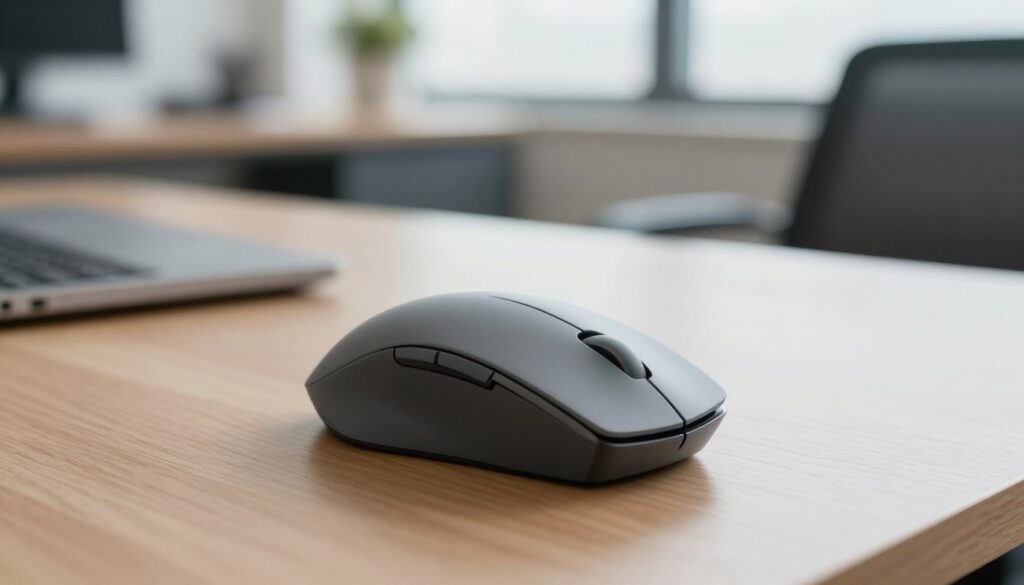
The Contour Design Rollermouse Red Wireless ($394) is a standout. It lets you navigate while keeping hands on the home row. That design protects fingers and reduces repetitive motion.
Why it matters: this device suits users with severe wrist issues who need a completely different interaction method. The build quality and unique layout justify the high price for many users.
Specialized trackball devices are another strong option. A good trackball gives precise cursor control with minimal hand movement. That reduces strain and keeps the forearm steady.
“These tools can change daily function when other devices fail.”
- I’ve seen the Rollermouse transform work for people with chronic discomfort.
- If multiple ergonomic mouse trials didn’t help, consider these high-end options.
- They aim to keep hands neutral and maximize long-term comfort.
| Device | Type | Key benefit |
|---|---|---|
| Contour Rollermouse Red Wireless | Hands-home row controller | Minimal reach; keeps hands neutral |
| High-end trackball | Thumb or finger operated | Precise control; little hand travel |
| Assistive button panels | Custom input | Reduces mouse clicks and repetitive motions |
How Hand Size Impacts Your Mouse Choice
I found that sizing often determines whether a device helps or hinders daily work. A model that fits your palm reduces reach and makes clicks feel natural.
The Logitech Lift ($80) is designed for smaller hands and felt like a natural fit during my tests. It keeps button reach short and supports a compact grip.
The Logitech MX Vertical ($120) suits medium to large hands because of its wider shape. If your palm is bigger, that model gave me better long-term comfort.
The Elecom Huge Trackball ($55) offers a full-hand experience. That worked well for medium hands but felt tight on very large palms.
- I always check dimensions before buying to match hand sizes to a model.
- Try a device in left or right hand if you switch sides often.
- Remember: the best ergonomic pick is the one that fits your hand, not just the feature list.
| Model | Best Hand Sizes | Key Fit Notes |
|---|---|---|
| Logitech Lift | Small | Compact reach; ideal for smaller palms |
| Logitech MX Vertical | Medium–Large | Wider shape; better support for larger hands |
| Elecom Huge Trackball | Medium | Full-hand control; can feel cramped on very large hands |
Testing and Performance Metrics Explained
I run repeatable lab tests to quantify how a mouse performs in real-world tasks.
My process checks tracking precision, the feel of the scroll wheel, and how responsive programmable buttons are.
I weigh each model to see how weight affects daily movement and fatigue. Lighter devices need less force to move; heavier ones feel steadier.
I use software like Logi Options+ to test customization. Good software lets me tune buttons and performance to match a user’s workflow.
I also compare how a thumb-operated trackball handles precision versus a standard optical sensor. Trackball designs often win at tiny cursor moves. Optical sensors still lead in raw tracking and velocity across surfaces.
- I score the smoothness of scrolling and the tactile feedback of each wheel.
- I time button response and note latency in everyday apps.
- I log performance across tasks to make direct comparisons.
| Metric | What I Measure | Benchmarks |
|---|---|---|
| Tracking precision | Cursor fidelity at varied DPI | Low jitter; consistent across surfaces |
| Scroll wheel | Smoothness, detents, silent mode | High score: MX Master 3S scroll feel |
| Buttons | Latency and programmability | Fast, remappable via Logi Options+ |
| Weight & design | Grasp comfort and movement effort | Balanced weight aids long sessions |
Mice That Failed Our Ergonomic Standards
Not every product that markets itself as supportive actually reduces strain. I rejected several items after full-day trials when they made posture worse instead of better.
The ProtoArc EM11 NL ($25) stood out as a clear fail. Its low-quality sensor caused jitter and the shell wobbled. That combo produced an unstable cursor and a sloppy click feel.
That model also felt tight for medium and large hands, so it was uncomfortable during long sessions. A poor fit like that encourages awkward angles and extra motion.
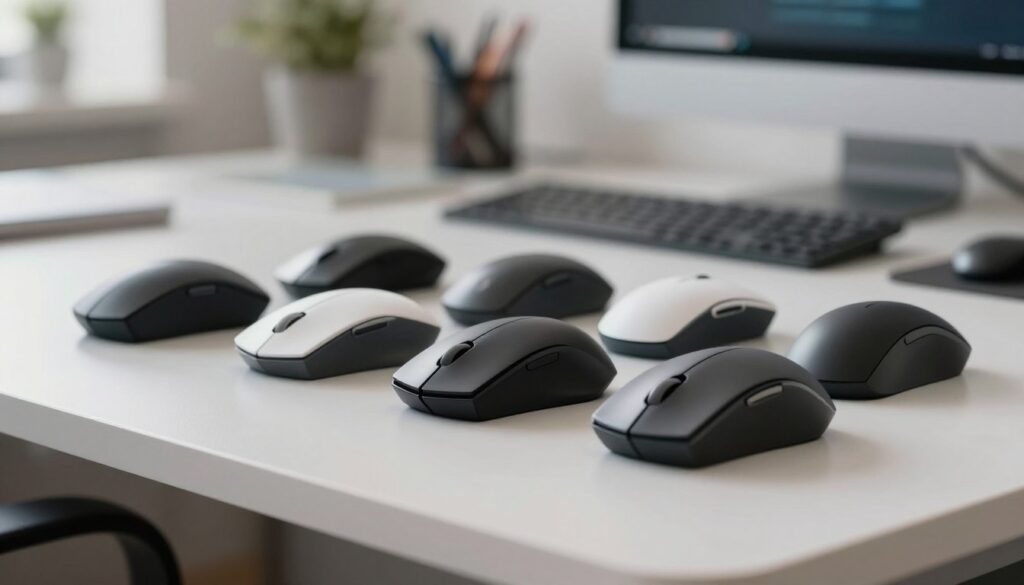
Some trackball units failed too. I found stiff buttons and odd button placement that forced re-grips and led to hand fatigue. Those designs were worse than a basic mouse in daily use.
I am strict with my testing. I flag products that look interesting but do not deliver real benefit. My goal is to help you avoid wasting money on gear that harms posture or adds strain.
- Takeaway: prioritize stable tracking, solid build, and natural fit before buying.
Tips for Setting Up Your Ergonomic Workspace
A small change in mouse placement often yields big gains in daily comfort and focus.
Place your mouse so your wrist stays straight and neutral. Keep the device close to the keyboard to avoid reaching. That simple habit cuts awkward side-to-side movement and reduces strain.
Use a vertical mouse like the Logitech Lift ($80) to keep your forearm relaxed. If you need high performance at your desk, the Logitech MX Master 3S ($110) blends comfort with pro-level features like a quiet scroll wheel and programmable buttons.
Set desk height so your elbows sit at about a 90-degree angle. Adjust chair height and monitor position to support that arm angle. When left-right reach is balanced, hand movement becomes smaller and more controlled.
- Keep the mouse close: minimizes reach and thumb strain.
- Calibrate software: if you use a master-series mouse, set buttons and scroll behavior to match your workflow.
- Take short breaks: stretch fingers and hands every 20–30 minutes to restore circulation and reduce fatigue.
| Tip | Action | Why it helps |
|---|---|---|
| Mouse placement | Keep near keyboard, straight wrist | Less reach; steadier movement |
| Device choice | Vertical mouse or MX Master 3S | Natural forearm position; strong performance |
| Desk & chair | Elbows ~90°; monitor aligned | Reduces shoulder tension and hand strain |
| Software & settings | Adjust buttons, scroll speed | Improves comfort and task speed |
Conclusion
I hope this guide helps you choose a better mouse so your daily work feels easier and more productive. A well‑matched device brings immediate comfort and reduces repetitive strain.
When picking the best ergonomic mouse, focus on fit and function. Try vertical or trackball options, and test the Master series, the Lift, or a thumb trackball to see what suits your hand.
Adjust buttons, speed, and software settings. Experiment until clicks, the scroll wheel, and grips feel natural. Thank you for reading, and good luck creating a more comfortable workspace.
FAQ
What makes a mouse a good choice to help prevent wrist pain and carpal tunnel?
I look for a design that promotes a neutral hand posture, reduces forearm rotation, and limits wrist extension. A vertical shape, a slightly tilted angle, or a trackball can keep my hand in a more natural position. I also check weight, button placement, and whether the mouse supports adjustable DPI so I can move the cursor with less wrist motion.
How does posture affect discomfort when using a computer mouse?
Poor posture increases pressure on nerves and tendons. If my elbow is too high or my wrist rests on the desk while I move the mouse, I feel more strain. Keeping my forearm supported, shoulders relaxed, and the mouse close to the keyboard reduces awkward angles and lowers the risk of numbness or aching.
Why do standard flat mice often worsen symptoms?
Flat, symmetric designs force my palm to pronate and twist the forearm. That internal rotation and wrist extension increase tension in the carpal tunnel area. Switching to a mouse that reduces pronation eases those stresses and improves comfort during long sessions.
Are vertical mice truly better than traditional models?
For many people, yes. Vertical models keep my hand in a handshake position, which reduces forearm rotation and wrist strain. They take some getting used to, but I notice less fatigue and fewer twinges after a few days.
How do trackball mice compare to other options?
Trackballs let me move the cursor without moving my wrist or arm. Thumb-operated trackballs work well when I want fine control with minimal movement, while finger-operated trackballs suit those who prefer fingertip precision. Both types cut down on repetitive motion.
What role does the scroll wheel play in comfort and productivity?
A smooth, precise scroll wheel reduces the need for repetitive finger flicks. I prefer wheels with adjustable tension or side-scrolling features so I can navigate long documents without straining my fingers. Good scrolling keeps me efficient and less sore.
Are programmable buttons important for reducing strain?
Absolutely. I assign frequent commands—like copy, paste, or browser back—to mouse buttons. That cuts keyboard reach and repetitive keystrokes, lowering wrist and finger stress over the workday.
How does hand size affect which model I should choose?
Hand size changes how a mouse fits. Small hands often prefer compact, lower-profile shapes; medium to large hands need fuller grips and longer bodies. I measure my hand from wrist crease to tip to match manufacturers’ size guides before buying.
Can software improve a mouse’s ergonomic performance?
Yes. Manufacturer software like Logitech Options or Microsoft Mouse and Keyboard Center lets me remap buttons, set DPI levels, and customize scrolling. Those tweaks let me reduce movement and tailor the device to my workflow.
Do I need a special surface or mouse pad?
Surface matters. A low-friction pad helps me move with smaller, more controlled motions. For some trackballs, I don’t need much surface at all. I prefer a wrist-support pad only if it encourages a neutral wrist angle—otherwise I skip it.
What are affordable alternatives to premium vertical or trackball models?
Several budget-friendly vertical mice and compact trackballs offer solid posture benefits without a high price. I check for reliable sensor performance, comfortable grip, and basic programmable buttons when choosing a value option.
How do I test a mouse before committing to it?
I try a 15–30 minute session simulating my daily tasks—scrolling, clicking, and using shortcuts. I note any immediate discomfort, how natural my hand feels, and whether I can reach buttons easily. Many retailers and brands offer return windows, which I use to test longer at my desk.
When should I consider specialized equipment for severe discomfort?
If I experience persistent numbness, tingling, or weakness despite ergonomic changes, I consult a healthcare professional. They may recommend a clinical-grade vertical mouse, a wrist brace, or physical therapy. I treat persistent symptoms seriously and act early.
Will switching my mouse alone solve my discomfort?
Not always. A better mouse helps, but I also adjust desk height, keyboard position, and my sitting posture. Regular breaks, stretching, and light exercises make a big difference alongside a better pointing device.
Which brands are known for quality feature-rich options?
I often recommend Logitech and Microsoft for their proven track records. Logitech’s MX series and the Lift deliver advanced customization and solid build quality, while Microsoft offers reliable vertical and traditional choices that balance comfort and price.
How much should I expect to spend on a good mouse that reduces strain?
Prices vary. You can find effective budget models under , solid mid-range options around –0, and premium feature-rich choices above 0. I weigh comfort and long-term health over a small upfront saving.

Dylan Mercer is a hardware enthusiast specializing in mechanical keyboards and high-performance mice. He shares in-depth reviews, switch comparisons, and setup tips to help users achieve precision, speed, and comfort in every click and keystroke.