I often find an unexpected double click can ruin my workflow and gaming sessions. It feels like the device reads a single press as two, and that problem shows up in everyday tasks on my computer.
Often the cause is simple: worn buttons, debris, or a settings glitch in Windows or the device software.
What helped me fix double-click issues without replacing my mouse
I’ve dealt with the double-click problem more than once, and my first instinct was always to assume the mouse was already failing. But after testing a few cases, I realized that jumping straight to replacement isn’t always necessary. In one situation, simply adjusting the double-click speed in the system settings solved the issue immediately. That experience showed me that small configuration tweaks can sometimes fix what feels like a hardware problem.
From my experience, it’s important to test things step by step instead of trying everything at once. I usually start with software—checking drivers and settings—before moving to cleaning or hardware inspection. This approach saves time and avoids unnecessary fixes, especially when the issue is caused by something simple like debris or a driver glitch.
I’ve noticed that many “broken” mice are actually just poorly configured or slightly dirty, not truly damaged.
If there’s one practical tip I can share, it’s to test your mouse on another device before making any decisions. If the problem appears on multiple systems, it’s likely hardware—but if it doesn’t, you can focus on fixing your setup instead of replacing the mouse. This simple check has helped me avoid unnecessary purchases more than once.
I check system settings and drivers first to see if the behavior is software related. If the drivers don’t help, I run a quick hardware inspection and clean around the buttons.
Even high-end gaming gear like the GameMax MG8, rated for 10 million presses, can show this issue over time. I try basic steps and a short test in Safe Mode by holding the power button for a few seconds to reboot, which helps me isolate the cause.
Key Takeaways
- Unintended rapid clicks often stem from hardware wear, debris, or driver settings.
- I start by checking system settings and updating drivers.
- Cleaning around buttons can restore reliable clicks in many cases.
- High-quality mice, including the GameMax MG8, wear down after millions of presses.
- Rebooting into Safe Mode helps me determine if software causes the issue.
- If hardware fails, replacement may be the final step after troubleshooting.
Initial Diagnostic Steps for Your Mouse
I like to isolate whether the trouble is with the device or my computer by running basic diagnostics. These quick steps save time and point me to the right solution.
Test on different surfaces first. I place the mouse on a matte pad, a wooden desk, and a glossy surface to see if the sensor stuttering or an unintended click shows up.
If a glossy desk causes the problem, switching to a matte pad often restores normal speed and tracking.
Checking USB connectivity
I unplug the device and move it to another USB port. Sometimes a loose or underpowered port creates erratic behavior.
Next, I test the devices mouse on another computer. If the issue appears there too, the hardware is likely at fault and needs deeper attention.
“Testing in Safe Mode helps isolate whether software causes the problem.”
- I ensure cables and USB adapters are snug and undamaged.
- I watch for consistent power delivery to prevent sensor hiccups.
- These simple steps help me decide the next troubleshooting path.
How to Fix Mouse Double-Clicking Through System Settings
I use Windows’ mouse options to change the timing that separates single and double clicks. This is often the fastest way to solve the issue without touching hardware.
Open Settings > Devices > Mouse, then select Additional mouse options. In the window that appears, find the double-click speed slider.
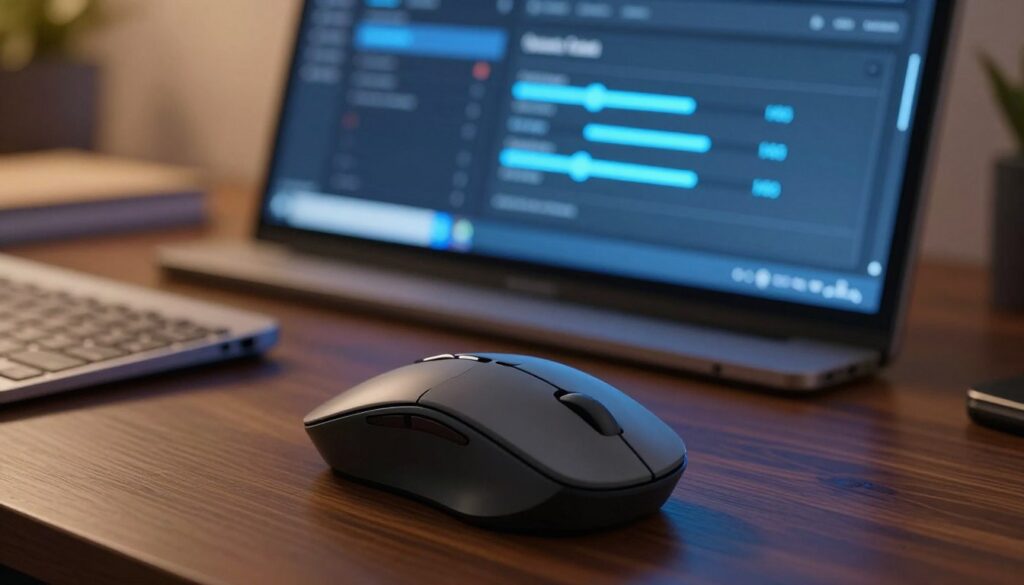
Drag the slider toward the slow side to lengthen the time allowed between clicks. That makes a single press less likely to register as two.
I test the setting using the folder icon in the dialog. Click once on the folder icon and watch whether a file opens. If a single click opens the folder, move the slider slightly slower and test again.
“Adjusting the double-click speed solved my clicks without replacing the device.”
- Use system settings first before hardware steps.
- Gamers should ensure settings match in-game input sensitivity.
- Test across a few seconds and repeat until clicks register reliably.
| Setting | Action | Result |
|---|---|---|
| Double-click speed slider | Move toward slow | More time between clicks; fewer accidental double clicks |
| Folder icon test | Single click | Confirms single click registers correctly |
| In-game input | Adjust to match system | Consistent clicks during gaming |
Updating and Reinstalling Device Drivers
Before assuming hardware failure, I verify drivers in Windows to rule out software causes.
I open Device Manager to check the Mice and other pointing devices category. That lets me see whether the device is recognized and if Windows flags any driver errors.
Managing drivers via Device Manager
I right-click the listed device and choose Update driver when an update is available. Updating often restores proper communication between the system and the device.
If updating does not solve the issue, I uninstall the driver and reboot the computer. Windows usually reinstalls a clean driver at startup, which can remove corrupted files and resolve persistent clicks.
- I confirm the device appears under Mice and other pointing devices so the system recognizes it.
- I use Windows Update or the device maker’s site for the latest driver if Windows can’t find one.
- As a last step, uninstalling then restarting forces a fresh driver install from Windows.
These steps are simple but effective. Managing drivers in Device Manager is one of the most reliable actions I take to address this problem and keep my clicks consistent.
Cleaning and Maintaining Your Hardware
A quick internal clean often removes the tiny particles that cause erratic clicks and sensor jumps.
Removing debris from sensors
I gently open the shell and look for dust near the sensor. Small particles can make tracking jump or slow the speed of the cursor.
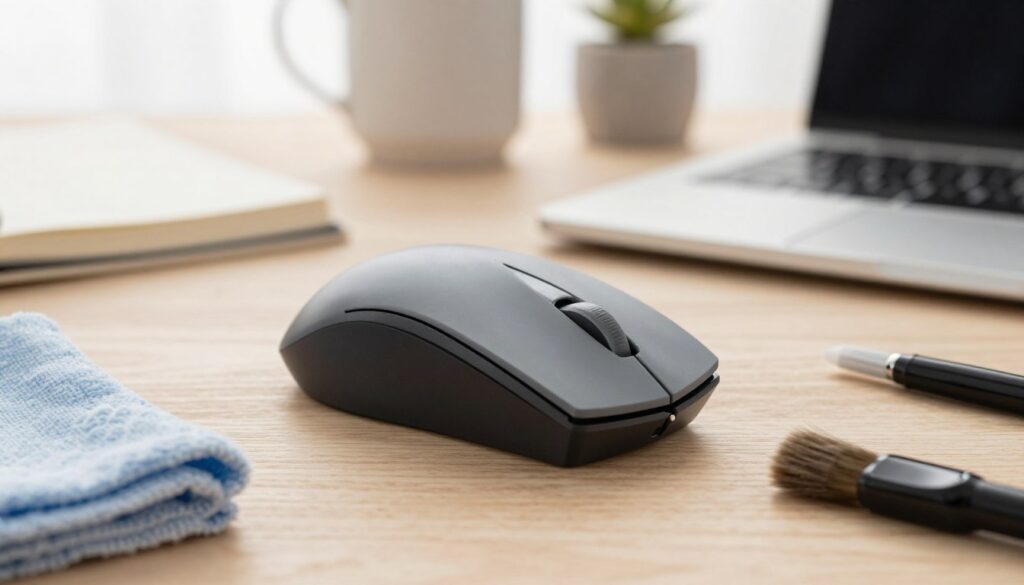
I use a soft brush and compressed air to clear the sensor area. That step helps when the system seems unsteady during gaming or daily work.
Cleaning internal switches
Use isopropyl alcohol (70% or higher) on a cotton swab to clean the internal switches. I press the button to expose the switch, then wipe gently to remove grime.
After cleaning, I wait a few seconds for the alcohol to dry completely before reassembly. This protects the components and prevents short circuits.
Preventing future wear
I keep gaming mice and regular units dust-free by cleaning them every few months. Regular care extends the life of the buttons and lowers the chance of a serious issue.
- I store the device away from food and fabric fibers.
- I test single click response after each cleaning to confirm consistent clicks.
- Caring for hardware can delay buying a new mouse and preserve performance.
| Task | Tool | Result |
|---|---|---|
| Sensor cleaning | Soft brush, compressed air | Smoother tracking; fewer stutters |
| Switch cleaning | Cotton swab + 70%+ isopropyl | Clears grime; can fix mouse double-clicking |
| Routine maintenance | Monthly inspection | Longer button life; fewer replacements |
Advanced Troubleshooting for Persistent Sensor Issues
To isolate stubborn sensor stutters, I restart Windows in Safe Mode and retest the device.
If the sensor works fine in Safe Mode, a background program or driver conflict on your system is likely causing the issue. That tells me the problem is software, not hardware, so I focus on uninstalling recent apps and disabling startup items.
I also revisit system settings and drivers to ensure no gaming utilities or overlays interfere. If the behavior continues in Safe Mode, the hardware may be failing.
For advanced users, replacing the microswitch can revive an out-of-warranty device. I only attempt this if I have soldering experience and replacement parts.
- I consider a new mouse when internal parts are damaged beyond repair; that often costs less than professional service.
- I run one final test after driver updates and changes to confirm the issue is solved.
| Action | When to use | Likely result |
|---|---|---|
| Safe Mode testing | Persistent stutter or erratic clicks | Identifies software conflicts |
| Replace microswitch | Out of warranty; confident with tools | Can restore reliable buttons |
| Buy new device | Severe hardware damage | Quick, cost-effective resolution |
Conclusion
, I finish by running a short test to confirm every single click responds as intended. I adjust the double-click speed and review system settings in windows before opening the shell for a clean.
Most issues clear up after these steps. I update drivers, try another surface, and test the device in a quick gaming session.
If the problem persists, I decide whether repair or a new mouse makes more sense. Regular maintenance and sensible settings keep clicks steady and extend the life of my device.
FAQ
How do I diagnose double clicks and sensor stuttering on my mouse?
I start by testing the device on different surfaces and ports. I try a known-good USB port and a different mouse pad or desk surface. If the problem follows the hardware across surfaces and ports, it points to the device rather than the computer or software.
What surfaces should I test on to isolate the issue?
I use a hard plastic pad, a cloth pad, and a bare desk to compare tracking. Optical and laser sensors can behave differently, so swapping surfaces helps reveal sensor stuttering or inconsistent clicks.
How can I check USB connectivity and power issues?
I plug the device into a rear USB port on a desktop or try a different hub. I also test a different USB cable or port and remove USB extenders. In laptops, I try both USB-A and a powered USB hub to rule out insufficient power.
Can system settings stop unwanted double clicks?
Yes. I open Windows Settings > Devices > Mouse and adjust the double-click speed slider. Slowing the required speed makes single presses less likely to register as two clicks. I also check the primary button setting in the same menu.
How do I manage drivers via Device Manager?
I open Device Manager, expand “Mice and other pointing devices,” right-click the device, and choose Update driver or Uninstall device. After uninstalling, I reboot so Windows reinstalls the driver. For branded mice, I download the latest driver from Logitech, Razer, SteelSeries, or Microsoft.
When should I install manufacturer software?
I install official software (Logitech G Hub, Razer Synapse, SteelSeries Engine) when I need firmware updates, button remapping, or polling rate adjustments. Those apps also help troubleshoot click behavior and change debounce time on some gaming models.
How do I clean sensors and exterior parts safely?
I power down and disconnect the device first. I use compressed air for crevices, a soft brush and isopropyl alcohol on the exterior, and a cotton swab around the sensor window. I avoid harsh chemicals and let components dry completely before reconnecting.
Is it worth opening the device to clean internal switches?
I only open a mouse if it’s out of warranty and I’m comfortable with small electronics. Inside, I can remove debris and apply a tiny amount of contact cleaner to microswitches. If the switches are worn, replacing them or the PCB may be necessary.
How can I prevent button wear and future stuttering?
I reduce aggressive clicking, enable software-level debounce if available, and choose mice with rated mechanical switches for longevity. Regular cleaning and using a quality pad also prolong sensor performance.
What advanced steps help with persistent sensor issues?
I update firmware, test the sensor with manufacturer diagnostics, and try different USB polling rates. If problems persist, I swap the cable for a high-quality replacement or test the unit on another computer to confirm hardware failure.
When should I replace the device or seek warranty service?
I replace the device if the left or right click consistently registers twice despite cleaning, driver updates, and settings changes. If the product is under warranty, I contact the manufacturer for repair or replacement before buying a new unit.

Dylan Mercer is a hardware enthusiast specializing in mechanical keyboards and high-performance mice. He shares in-depth reviews, switch comparisons, and setup tips to help users achieve precision, speed, and comfort in every click and keystroke.