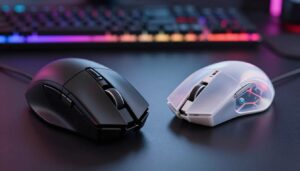
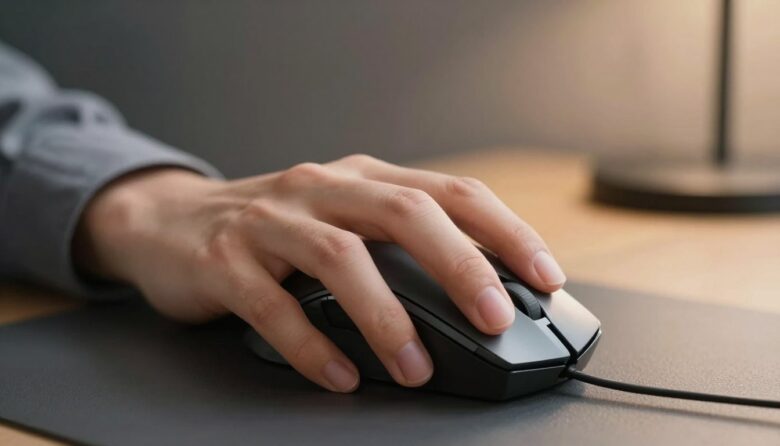
I want to help you find the best way to hold your device so comfort and precision improve at the same time. Research shows most people fall into three clear categories: palm, claw, or fingertip. Knowing which one fits you is the first step toward better control and less wrist strain.
I’ve tested small adjustments and found they can boost reaction time and accuracy. By checking where your fingertips, thumb, and side panels make contact, you can tell which style suits your hand size and movement needs.
What changed when I stopped forcing a grip that didn’t fit me
For a long time, I tried to copy the grip style I saw other players using, thinking it would automatically improve my aim. The problem was that it never felt natural, and after longer sessions my hand would get tired much faster. When I finally paid attention to how my hand naturally rested on the mouse, everything became easier—my movements felt more controlled and I didn’t need to “fight” the shape anymore. That’s when I realized that comfort and natural positioning matter more than following trends.
From my experience, small adjustments in how your fingers and palm make contact can change both precision and fatigue levels. I’ve tested slight variations of palm and claw grip, and even minor tweaks made a noticeable difference in control during longer sessions. What works best is the grip that lets your hand stay relaxed while still giving you stability.
I’ve noticed that when your grip feels natural, you stop thinking about it—and that’s when your performance improves the most.
If there’s one practical tip I’d give, it’s to observe your hand during normal use instead of forcing a specific style. Let your grip settle naturally, then choose a mouse that supports that position rather than trying to adapt your hand to the device. This approach usually leads to better comfort and more consistent control over time.
Choosing the right shape is a personal decision based on comfort, speed, and stability. Whether you favor steady control for long work sessions or quick movements for gaming, matching your hold to the right type of device makes a noticeable difference.
Key Takeaways
- Most people use one of three common holds: palm, claw, or fingertip.
- Identifying contact points helps match your hand to the right shape.
- Small adjustments can improve accuracy and reduce wrist fatigue.
- Pick a device that fits your hand size and preferred movements.
- Comfort, control, and stability should guide your choice.
Why Your Mouse Grip Style Matters
Your natural way of holding a pointing device shapes comfort, aim, and long-term wrist health.
I’ve learned that using a device that fights your natural claw grip or palm grip leads to fast fatigue and lower performance. When the shape forces awkward contact, fingers and thumb tense up. That tension shows as cramps and a tired wrist.
Finding a match changes everything. A well-fitted mouse lets your hand relax, improves control and boosts stability during long sessions. Proper ergonomics keep arm movements fluid, which is vital for precision in gaming and focused work.
Think of the device like shoes: a poor fit creates pain, while the right fit supports consistent movements. Test different holds and note how your side buttons and surface contact feel. I recommend trying several options until the contact points—palm, finger, and side—feel natural.
- A bad match causes fatigue and worse performance.
- A matched device reduces tension and improves control.
- Ergonomic fit protects your wrist and keeps precision high.
Understanding the Three Core Mouse Grip Styles
How you place your hand affects comfort, accuracy, and reaction time. I’ll walk through the three common hold types so you can spot which one fits your play or work.
Palm Grip
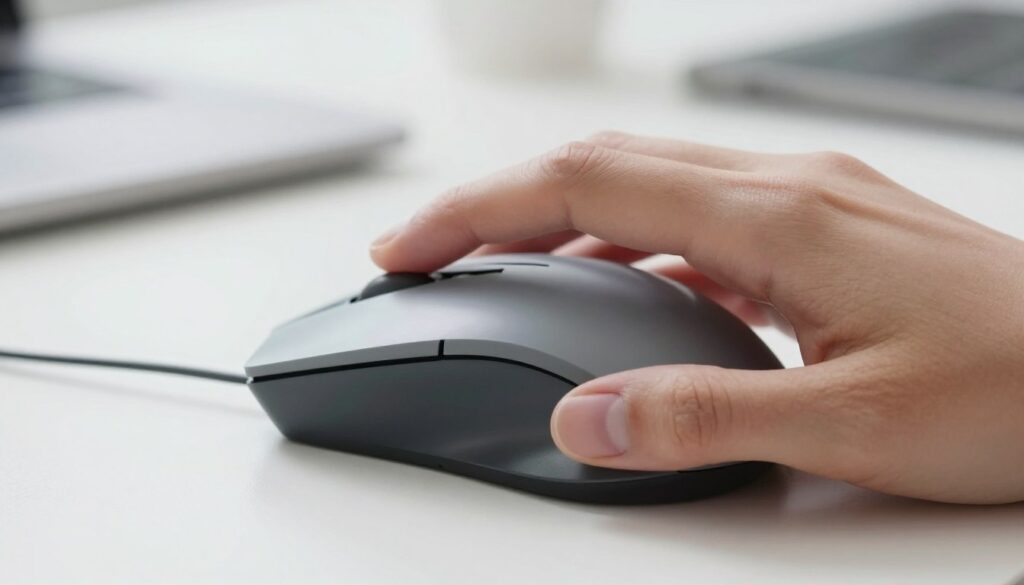
Palm is the most natural and relaxed way to rest your whole hand on the device. It reduces wrist strain and suits long sessions like office work or marathon gaming. I find palm offers steady control and excellent comfort.
Claw Grip
The claw sits with the palm touching the back while fingers arch for quick clicks. Many gamers favor this for a balance of speed and stability. It lets you flick the cursor fast while keeping enough support for bursts of precision.
Fingertip Grip
With a fingertip hold, only your fingertips touch, leaving the rest of the hand off the device. This gives top vertical agility and snappy reaction times. It takes practice, but it’s excellent for micro-adjustments and fast movement.
- Palm: best for comfort and long use.
- Claw: balances speed with control for gaming.
- Fingertip: maximizes agility and quick reactions.
How to Identify Your Personal Grip Style
A simple ten-second check can reveal whether your hand prefers full contact or fingertip control.
Stop reading for ten seconds and place your hand on your mouse. Let your hand relax and note where the palm and fingers touch.
Quick signs to watch for:
- If your entire palm rests on the back, you are likely a palm gripper who values comfort and stability.
- If the palm touches only the back edge and your fingers arch, you’re using a claw hold that blends speed and support.
- If the palm stays in the air and you move the device with your fingertips, you are a fingertip grip user focused on agility.
It is normal to feel like a mix of two approaches. Pick the one that feels most natural during daily tasks. Once you know your grip style, you can better judge how your wrist and fingers interact with buttons and side panels.
| Hold | Contact Points | Best For |
|---|---|---|
| Palm | Full palm, flat fingers | Long sessions, comfort |
| Claw | Back of palm with arched fingers | Balanced speed and control |
| Fingertip | Only fingertips and thumb | Fast flicks, fine adjustments |
Selecting the Right Mouse for a Palm Grip
For palm users, choosing a larger, contoured device makes long sessions far more comfortable.
Optimizing for Comfort and Control
I recommend larger gaming mice that fill your hand and support the entire palm and fingers. A high back and long body let your hand rest naturally. This reduces strain and keeps movements steady.
The HyperX Pulsefire Haste 2 S Wireless is a solid pick for palm players. Its up to 120-hour battery life keeps you in the game longer. A lightweight design also helps reduce wrist load during long sessions.
- Pick a contoured shape that follows your hand’s curve for better comfort.
- Look for a high-back profile so your palm has full contact and steady control.
- Ensure the thumb and side buttons allow natural rest for precise movements.
| Feature | Why it matters | Recommendation |
|---|---|---|
| High back | Supports whole palm, reduces bend in wrist | Choose long, tall body |
| Lightweight | Less fatigue over hours of play | Prefer sub-90g designs if possible |
| Battery life | Fewer interruptions for wireless users | HyperX Pulsefire Haste 2 S Wireless: ~120 hours |
Choosing Hardware for Claw and Fingertip Styles
Choosing the right hardware makes fast moves feel natural and keeps your hand steady during long sessions.
Hardware for Claw Grip
Claw users need a balanced shape that supports arched fingers. I prefer a symmetrical body with a clear back hump to give the palm light support without blocking quick finger action.
The Attack Shark X3 fits this well. Its form offers stability and room for arched fingers during rapid clicks and turns.
Hardware for Fingertip Grip
Fingertip players should go ultra-light and compact. A short, flat shape keeps the hand free so the fingertips and thumb steer with minimal effort.
The HyperX Pulsefire Haste 2 Wireless at 61g and the Mini at 59g make quick adjustments and fast moves feel effortless. I also note the Pulsefire Fuse uses a Pixart PAW3311 sensor for the precision and speed competitive gaming demands.
- I like humps for claw users, but I avoid them for fingertip setups.
- Both grips benefit when the device feels like an extension of the hand.
| Style | Recommended Model | Key Feature |
|---|---|---|
| Claw | Attack Shark X3 | Symmetrical shape with back hump for stability |
| Fingertip | HyperX Pulsefire Haste 2 / Mini | Extremely light (61g / 59g) for rapid control |
| Competitive | Pulsefire Fuse | Pixart PAW3311 sensor for precision and speed |
Considering Hand Size and Ergonomics
Small differences in palm width and finger length alter comfort more than you think.
I measure my hand span and finger reach before trying a new device. That quick check tells me whether a model will support the whole hand or force fingertip work.
Key fit points to test:
- Length: Does the body let your palm rest without overhang?
- Width: Can your thumb reach side buttons comfortably?
- Height: Is the back high enough to support the palm or too tall for short hands?
Ergonomics also means posture. I keep my wrist neutral and my forearm relaxed. If a device tilts my wrist up or down, I swap to one with a lower profile or a more contoured back.
- Measure palm length and compare with product specs.
- Try a short session to feel button reach and support.
- Prioritize comfort over looks; long-term health matters more.
Considering Hand Size and Ergonomics
Hand size often decides whether a device feels like an extension of you or a source of strain. After you identify your natural hold, measure palm length and finger reach to match product dimensions.
Large hands need larger bodies; small hands need compact shells. If the device is too small, your hand cramps. If it is too big, you lose fine control and tire faster.
Ergonomics matter for long sessions. Aim for a shape that keeps your wrist neutral and your fingers relaxed. Proper contact between palm, side, and fingertips supports better precision and stability.
- I always stress that hand size matters as much as your preferred hold when choosing a gaming mouse.
- Look for small, medium, and large options from makers so you can test fit before buying.
- Test different combos of size and hold to find the best balance of control and comfort for your hands.
Conclusion
Find the hold that feels natural to you, then match it with a device that lets your hand move freely. After 19 years of product work at HyperX, I know there is no single “right” approach—only what fits your play and work.
Strong, confident choice comes from testing. Try palm grip, claw grip, and fingertip grip with different sizes. Note how contact points, hand size, and button reach affect comfort and control.
Use gentle pressure and take breaks to protect your wrist. Pick a mouse that feels like an extension of your hand to boost performance during long games.
I hope this guide helps you identify your grip style and choose the best mouse for your setup. Talk with other gamers if you need more tips; comparing experiences often speeds up the right choice.
FAQ
How do I know if I use a palm, claw, or fingertip hold?
I check which parts of my hand touch the mouse during normal use. If my whole palm rests on the back and my fingers lie flat, I use the palm approach. If my palm arches and only the base touches while my fingertips and a curled knuckle control buttons, that’s the claw method. If only my fingertips and thumb make contact, I use the fingertip technique. Try moving a cursor slowly—your comfortable posture will reveal your natural choice.
Does hand size affect which shape I should pick?
Yes. My hand span and finger length change what feels stable. Larger hands usually prefer larger, full-bodied designs for support, while smaller hands often feel better with compact, low-profile options. I measure from wrist base to middle fingertip to guide sizing and test devices where possible.
What should I look for in a device if I favor a palm hold?
I prioritize a rounded back and generous length to support my palm. A textured side helps my thumb anchor without gripping hard. Moderate-to-high weight adds stability for steady aiming. I also value ergonomic curves that match my hand to reduce wrist strain during long sessions.
Which features matter most for claw and fingertip users?
I choose lightweight, responsive gear with a higher sensor DPI and fast switches. A narrow body helps me curl my fingers for claw control, while a short, sleek design works well for fingertip tapping. Rubberized side grips and programmable buttons aid quick movements and precision.
Can changing my technique improve performance in fast-paced games?
It can. I experiment with minor adjustments—like shifting from full palm to a slight claw—to gain speed or accuracy. Training muscle memory takes time, so I make gradual changes and practice in aim trainers or game matches to judge real gains.
How does wrist vs. arm movement factor into choice?
I rely on wrist movement for small, precise adjustments and on my forearm for broad sweeps. Compact designs favor wrist play, while larger shapes support arm-driven motions. I match device size to my typical playstyle to keep movements natural and reduce fatigue.
Should I prioritize sensor specs or shape first?
I focus on shape and comfort first, since long use exposes ergonomic issues faster than minor sensor differences. Once the fit is right, I compare sensor reliability, DPI range, and polling rate to ensure accuracy for my play and work needs.
Are wired or wireless options better for competitive use?
I pick based on latency, weight, and convenience. Modern wireless models from brands like Logitech and Razer offer excellent latency and lighter builds, making them competitive. If I need zero-compromise consistency, a wired connection still feels safest.
How can I test a new posture without buying new gear?
I practice with my current device by changing finger placement and seating. I use free aim trainers and adjust sensitivity to match the new posture. If I feel improved control and less strain after a week of practice, I consider investing in hardware that better fits the technique.
What role do button placement and extra controls play?
I want buttons where my fingers naturally rest to avoid awkward reaches. Side buttons help for macros and quick actions, but their positions should not force a tense hold. Programmable switches let me customize input for my preferred moves and games.
How often should I reassess my setup for comfort and performance?
I reevaluate every few months or after a change in games, desk, or chair. Small shifts in posture or new hardware can create discomfort over time. Regular checks help me tweak sensitivity, grip, or hardware before problems become chronic.
Can grip choice reduce the risk of repetitive strain?
Yes. I aim for a relaxed hold that spreads contact across my hand and encourages larger arm motions for heavy tasks. Ergonomic pads, periodic breaks, and stretching complement a good technique to lower strain risk.
Which brands make models suited for each contact approach?
I look at Logitech for full-sized ergonomic options, Glorious and Cooler Master for lightweight ambidextrous picks, and Razer for varied profiles with strong software support. Trying specific models in person helps me find the best match for my hand and playstyle.

Dylan Mercer is a hardware enthusiast specializing in mechanical keyboards and high-performance mice. He shares in-depth reviews, switch comparisons, and setup tips to help users achieve precision, speed, and comfort in every click and keystroke.