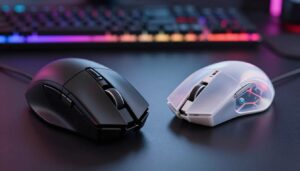
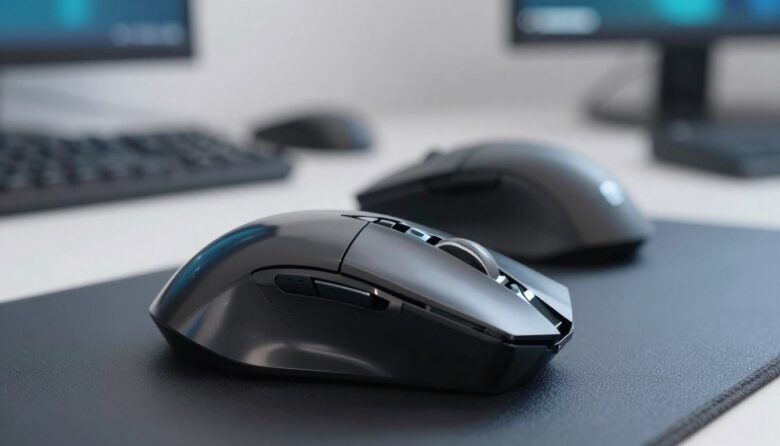
I wrote this step guide to help you get the most from your gear and keep a competitive edge in gaming. I walk through simple fixes, the tools you need, and how to replace worn pads so your new mouse feels smooth and responsive.
If a page blocked extension or extension blocked error stops you while shopping, don’t panic. Try disabling extensions in your browser so you can add items to your cart. I explain quick troubleshooting steps you can follow before you check out replacement parts.
What I noticed after replacing worn mouse skates
I didn’t realize how much worn skates were affecting my performance until I finally replaced them. At first, I thought my mouse or sensor was the issue because movements felt inconsistent and slightly rough. But after installing a new set of PTFE feet, the difference was immediate—everything felt smoother and more predictable. That experience showed me that even small components can have a big impact on overall control.
From my experience, many people wait too long before replacing their mouse feet. The wear happens gradually, so it’s easy to adapt without noticing the loss in glide. I’ve learned to check the bottom of the mouse regularly and pay attention to subtle changes like drag or scratching sounds. Catching these early helps maintain consistent performance.
I’ve noticed that restoring a smooth glide often feels like upgrading your mouse without actually buying a new one.
If there’s one practical tip I can give, it’s to clean the surface properly before applying new skates and give them a short break-in period. This ensures better adhesion and a more consistent glide right from the start, avoiding uneven movement during use.
I also cover basic cleaning with alcohol, how to check the glide edge on your current pads, and a short list of tools to have on hand. By the end, you’ll know how to refresh your gaming mouse setup and when a full replacement makes sense.
Key Takeaways
- I provide a clear step guide to restore smooth glide and peak performance.
- If you hit a page blocked error, try disabling extensions before you shop.
- Use the right tools and a bit of alcohol to clean and prep surfaces.
- Check the edge of old pads; small fixes can feel like a major improvement.
- Know when to replace parts or get a new mouse for competitive play.
Understanding the Role of Mouse Skates
Those thin pads under your mouse do more work than you realize when it comes to glide and control.
Mouse skates sit on the bottom of the device to keep it slightly raised. That small gap reduces friction so the sensor tracks smoothly while you aim.
Most manufacturers use PTFE (Teflon) because it has a very low coefficient of friction. PTFE pads offer a near-effortless slide that improves overall mouse feel during long gaming sessions.
If your stock feet wear down over time, you’ll notice more drag and inconsistent tracking. The material can scratch or compress after repeated use, and fresh pads restore a consistent glide.
Before you order replacement pads, check the product page. If you see a page blocked extension or an extension blocked error, try disabling extensions so you can view the full listing for compatible mouse feet.
- Small pads on the bottom keep the sensor at the right height.
- PTFE/Teflon delivers the smooth glide most players prefer.
- Worn stock pads lead to higher friction and uneven feel over time.
Signs Your Mouse Feet Need Replacement
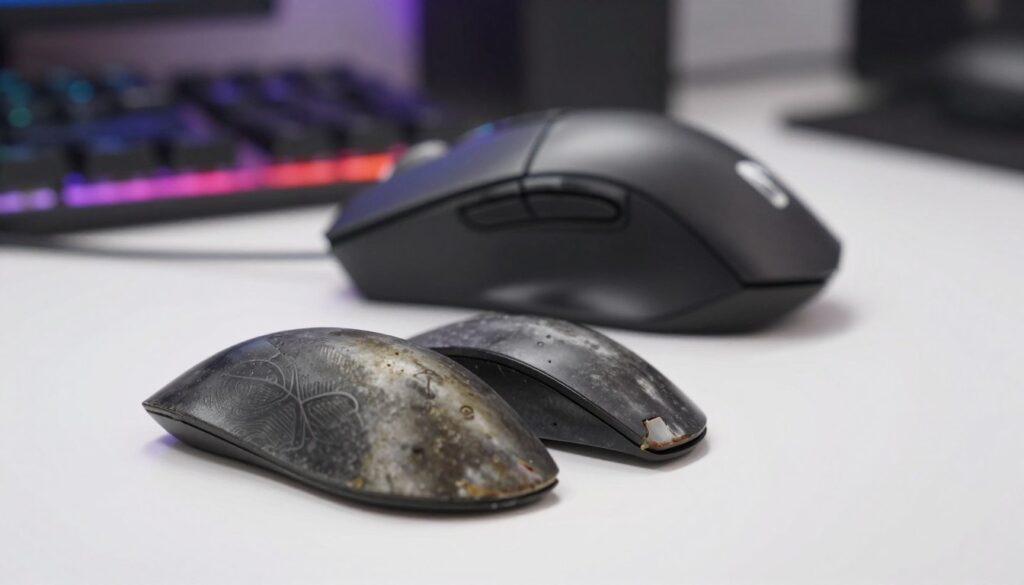
I check the base of my gear regularly so I can catch wear before it hurts aim. Look at the bottom for thin spots, peeling, or black bleeding where raw plastic shows through. Those marks mean the pads have worn through and need a replacement.
If you feel dragging or hear a faint scratch when moving across your surface, that performance drop is a clear indicator. Slow or jerky tracking, and a rough edge under the sensor, all point to worn feet and old skates that no longer glide well.
Quick checks and first steps
- Visual: Inspect the bottom for peeling or black spots.
- Sound/feel: Replace feet if you hear scratching or sense drag.
- Tools: Use tweezers and a pry tool to lift old pads carefully.
- Cleaning: Wipe residue with a microfiber cloth and rubbing alcohol before you fit new feet.
- Accessing parts: If a page blocked extension or blocked extension stops you while ordering, try disabling extensions to view the correct replacement listings.
| Symptom | Likely Cause | Immediate Step |
|---|---|---|
| Black bleeding on pads | Material worn through | Order replacement and clean bottom |
| Peeling edges | Adhesive degraded by sweat | Use pry tool and tweezers; clean with alcohol |
| Dragging or scratching | Surface friction increased | Replace mouse feet; test on your pad |
Choosing the Right Material for Your Playstyle
Picking the right material changes how your device feels in every flick and swipe.
I look at three main options when I choose new skates: PTFE, glass, and ceramic. Each offers a different balance of speed, feel, and durability.
PTFE — 100% virgin grade PTFE gives the lowest friction and a very consistent glide. I recommend it if you want smooth, predictable motion without surprises.
Comparing PTFE, Glass, and Ceramic
Glass skates deliver the fastest top speed. They suit high‑sensitivity players, though they can wear soft pads faster.
Ceramic skates are extremely hard and resist wear. They trade a touch of speed for long life and steady feel on most surfaces.
- Tip: If a page blocked extension or blocked extension appears while shopping, try disabling extensions so you can compare materials on the product page.
| Material | Strength | Best for |
|---|---|---|
| PTFE (virgin) | Low friction, consistent | Balanced glide and control |
| Glass | Top speed, slick | High‑speed gaming |
| Ceramic | Durable, steady | Long lifespan and stable feel |
How to Upgrade Mouse Skates Effectively
A calm, well-lit area and the right tools cut the time this project takes in half. I lay out every tool before I begin so each step is quick and safe.
Gathering Necessary Tools
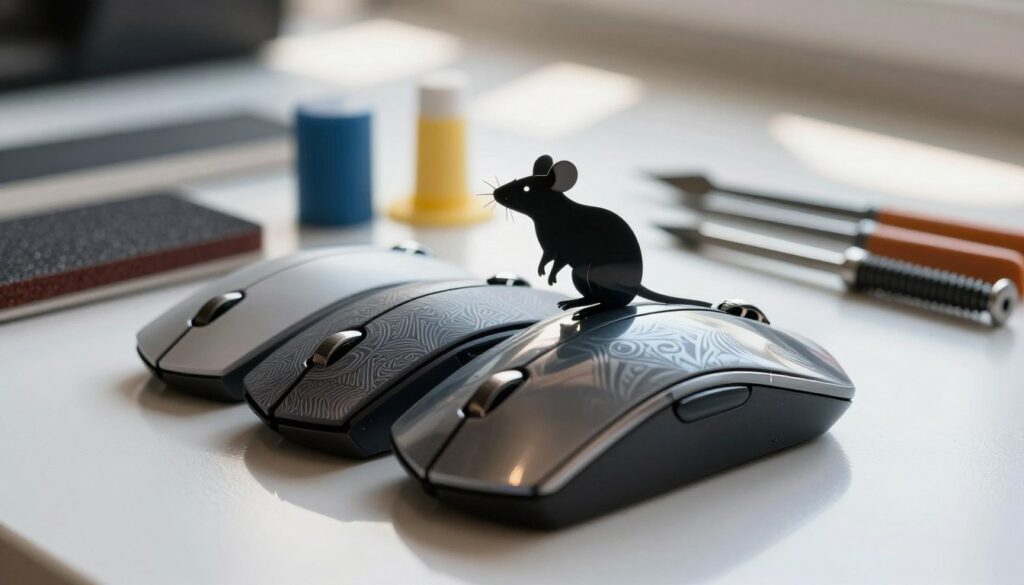
I use a pry tool, tweezers, a microfiber cloth, and a hairdryer. I also keep 90%+ isopropyl rubbing alcohol on hand for cleaning.
Must-haves:
- Hairdryer (low setting)
- Pry tool and tweezers
- Microfiber cloth and rubbing alcohol
- Replacement PTFE feet
Removing Old Adhesive
Heat the old pads with a hairdryer on low for 15–20 seconds to soften glue. Use a pry tool to lift the stock pads gently.
Work slowly to avoid scratching the bottom or sensor housing.
Applying New Feet
Clean the surface with 90%+ isopropyl alcohol and a microfiber cloth. Make sure no residue remains before you apply new parts.
- Use tweezers to align each pad with the bottom plate.
- Press firmly for 30 seconds to set the adhesive.
- Test glide on your surface and break in gently.
| Step | Action | Tip |
|---|---|---|
| Prep | Gather tools | Save time by organizing beforehand |
| Remove | Heat and pry | 15–20s hairdryer softens glue |
| Fit | Clean and apply | Press 30s; use tweezers for accuracy |
If a page blocked extension stops you while ordering parts, try disabling extensions so you can view the right product page and finish the replacement step.
Breaking In Your New Glides
Give your new pads a few hours of regular play so the PTFE surface smooths out and the initial roughness fades. I find the scratchy mouse feel usually disappears after short sessions of aiming and tracking.
I make sure to test on different surfaces to confirm the glide and balance are consistent. If you notice uneven friction, try a quick wipe of the bottom with a clean microfiber cloth and a bit of rubbing alcohol.
Using tweezers or a pry tool is only needed during the install step. After that, keep the surface free of dust and I check the mouse feet regularly to extend life and performance.
If a page blocked extension or page blocked error prevents you from finding care guides or parts, disable extensions so you can view the product page and follow maintenance tips.
| Action | Why | When |
|---|---|---|
| Play for a few hours | Bed‑in PTFE for smooth glide | Right after you apply new parts |
| Wipe bottom with cloth | Remove dust to lower friction | Weekly or after long sessions |
| Test on multiple surfaces | Verify consistent mouse feel | After break‑in |
Conclusion
In closing, a few simple steps save you time and keep every flick precise in your next match. I recommend replacing old skates with quality PTFE to restore smooth glide and consistent tracking.
Check your cart for compatible parts like the Fantech XD3V2 or similar picks from Tiger Gaming. If a page blocked extension or page blocked error appears, disable the extension so you can view the product page and finish your order.
Follow this step-by-step routine and your stock gear will feel like a new mouse. Keep checks short and regular to stay competition-ready.
FAQ
How do I know when my mouse feet need replacing?
I check for thin edges, uneven glide, and increased friction. If my pointer stutters or I hear scraping on my pad, the pads show visible wear, or the glide feels sticky even after cleaning, it’s time to replace them.
What tools should I gather before starting?
I get a microfiber cloth, isopropyl rubbing alcohol, a pry tool or plastic spudger, tweezers, and the replacement pads. A small pair of scissors or a precision knife helps if the new pieces need trimming.
How do I remove old adhesive safely?
I power down and unplug the device, then use the pry tool to lift the feet gently. I apply alcohol to soften residue and wipe with the microfiber cloth. For stubborn glue, I repeat the alcohol application and scrape gently with a plastic edge.
Which glide material should I choose for gaming?
I pick based on playstyle: PTFE offers smooth, low-friction motion for flicks; glass provides a steady, precise slide; ceramic can combine durability with a slick feel. I match the material to my surface and sensitivity.
How do I apply new feet for the best fit?
I align each pad before removing the backing, press firmly from the center outward, and let the adhesive set for a few hours. If the shape needs adapting, I trim carefully with scissors and test the edge alignment.
Do I need to break in new glides?
Yes. I perform controlled swipes on my pad and play normally for a day or two. That smooths edges and settles adhesive, improving consistency without aggressive wear.
Can I replace the pads myself without voiding warranty?
I always check the manufacturer’s policy first. Some brands like Logitech and Razer allow user maintenance, while others may void warranty if internal seals are broken. Replacing external feet usually stays safe, but confirm your specific model.
How do I clean the bottom for best adhesion?
I wipe the surface with isopropyl alcohol and a microfiber cloth, removing oils and dust. I let it dry fully before applying new pads to ensure a strong bond and consistent glide.
What’s the best way to test glide after installation?
I do controlled motion tests: slow tracking, quick flicks, and diagonal sweeps across my pad. I listen for scraping, feel for stutter, and adjust if the edges catch or the mouse tilts.
How long do replacement feet usually last?
I find longevity varies by material and playstyle. PTFE can last months to a year under heavy use; ceramic and glass may last longer. I inspect every few months and replace when performance drops.

Dylan Mercer is a hardware enthusiast specializing in mechanical keyboards and high-performance mice. He shares in-depth reviews, switch comparisons, and setup tips to help users achieve precision, speed, and comfort in every click and keystroke.