I’m here to help you cut through the confusion between two core input metrics so your gaming setup feels smooth and accurate.
Many players mix these terms up, yet they control different parts of how your cursor talks to your computer. One governs sensitivity, while the other controls how often input is reported.
What actually improved my aim after understanding these settings
For a long time, I kept changing DPI and polling rate without really understanding what each one did. I would increase everything thinking it would automatically make my aim better, but the result was inconsistent tracking and overcorrection during matches. It wasn’t until I slowed down and tested one setting at a time that things started to make sense. That process helped me realize that sensitivity and responsiveness are different, and both need to be balanced—not maximized.
From my experience, the biggest improvement came when I stopped chasing extreme values and focused on consistency. I settled on a stable polling rate and adjusted DPI in small steps while playing the same scenarios. This made my aim more predictable and helped build muscle memory, which matters far more than small technical differences.
I’ve noticed that the best settings are the ones you can rely on every match, not the ones that feel impressive for a few minutes.
If there’s one practical tip I can give, it’s to avoid changing multiple settings at once. Pick one variable, test it in real gameplay, and give your hand time to adapt before making another change. This simple approach makes it much easier to find a setup that actually works for you instead of constantly starting over.
Whether you use high-end gaming mice or basic hardware, knowing the difference helps you tune for better control and less lag. I will explain how dpi settings and polling rates affect aim, tracking, and overall performance in games.
By the end, you’ll know which setting to change for steadier aim and which to leave alone. This guide will keep advice practical and easy to apply to your system.
Key Takeaways
- I’ll define both terms clearly so you know the real difference.
- Small tweaks can improve accuracy in fast-paced games.
- You’ll learn which setting affects sensitivity versus input timing.
- The tips work for premium and budget hardware alike.
- Follow simple tests I provide to find the best personal setup.
Understanding the Basics of Mouse DPI
I’ll walk you through the core concept that links tiny sensor steps to how the cursor crosses your screen.
Defining Dots Per Inch
Dots per inch measures how many tiny steps a sensor reports for each inch of physical movement. In short, higher counts mean the cursor travels further on the screen for the same hand motion.
When you raise dpi, the cursor speed increases because the sensor registers more dots per inch. This is a hardware metric separate from software sensitivity, which can scale those signals further.
How Sensors Translate Movement
Sensors like the PixArt PAW3950 can support up to 42,000 dpi, letting players tune extreme sensitivity. The Teevolution Terra PRO uses advanced tracking to convert physical movement into precise cursor motion.
Lower settings often help with fine control for tasks like competitive sniping. Your screen resolution also changes how high dpi feels—higher resolutions need more motion to cover the same distance on the screen.
| Aspect | Low Setting | High Setting | When to Use |
|---|---|---|---|
| Control | More precise | Less fine control | Sniping, precise work |
| Speed | Slower cursor | Faster cursor | Fast flick shots, broad movement |
| Sensor load | Lower reporting | Higher reporting | Depends on hardware capability |
| Display effect | Needs more hand travel | Covers screen quickly | Varies by screen resolution |
Decoding Mouse Polling Rate and Responsiveness
I’ll keep this simple: the polling rate is the count of times per second your device reports position to the computer. It is measured in Hertz and directly affects input lag.
Common examples help: 125Hz reports every 8ms, 1000Hz reports every 1ms, and 8000Hz reports every 0.125ms. Moving from a low report frequency to a higher one noticeably smooths fast hand movement and cursor travel in gaming.
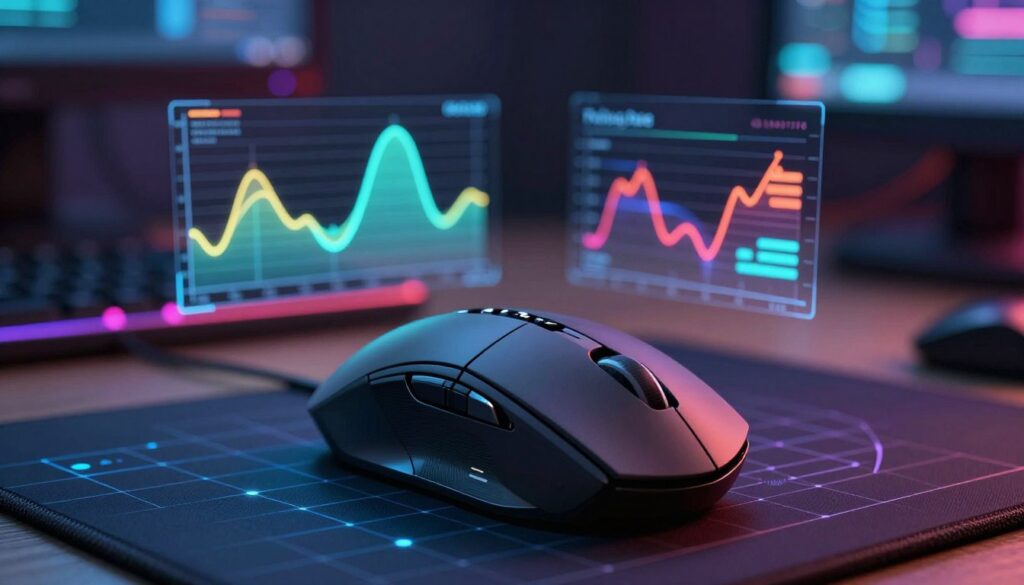
Trade-offs matter: each update uses a sliver of CPU power, so ultra-high settings can tax the system. I recommend testing your device to confirm it keeps a steady frequency during play.
- Measured in Hertz — how many times per second input is sent.
- Higher polling rate cuts delay; 1000Hz = 1ms updates versus 8ms at 125Hz.
- Very high settings boost smoothness but use more system resources.
| Setting | Update Interval | Perceived Effect | When to Use |
|---|---|---|---|
| 125Hz | 8 ms | Noticeable lag with quick flicks | Low CPU systems |
| 1000Hz | 1 ms | Responsive, balanced performance | Most gaming setups |
| 8000Hz | 0.125 ms | Maximum smoothness, higher CPU use | High-end hardware |
The Relationship Between Mouse DPI and Polling Rate
I often see players confuse sensitivity with reporting frequency, so I want to clear up how those settings interact.
They are separate controls inside the device. One sets how many dots per inch the sensor reports. The other sets how often the computer receives position updates.
That means changing one does not change the other. But together they shape how smooth and precise cursor movement feels during gaming.
Dispelling Common Myths
“Think of dpi as distance and polling as the heartbeat of input.”
If you use a high dpi with a low polling rate, the cursor can jump because the system lacks enough position samples. Pairing higher dpi with a higher polling rate captures tiny hand movement and keeps cursor moves fluid.
- I treat them as two dials: one controls speed, the other controls frequency of updates.
- Even a very sensitive device needs steady reporting for top competitive performance.
- Test combinations to find the best balance for your screen and hardware.
How These Settings Impact Your Gaming Performance
I’ve tested setups where tiny input differences decided rounds. Your control in firefights often comes down to how precisely your device reports position.
Precision in Competitive Shooters
Precision in Competitive Shooters
Higher dpi makes the cursor jump farther for each hand movement. That helps broad turns but can hurt fine aim unless paired with a higher polling rate.
In close contests, I use a balanced setting to keep flicks consistent. This reduces jitter and keeps crosshair motion predictable during quick engagements.
Managing Input Latency
Reducing input lag is the main benefit of a higher polling rate. Each time the device reports position the system updates aim. Faster updates mean less time between action and result.
If your computer is older, very high settings may not help. I recommend testing changes while watching frame rates to avoid trading smoothness for instability.
CPU Resource Usage
Every report costs CPU cycles. Ultra-high settings like 8000Hz can raise system load and affect FPS. On modern rigs this is often fine, but lower-spec machines may gain more from stable, moderate settings.
“Balanced settings often beat extremes in real matches.”
| Effect | Lower Setting | Higher Setting |
|---|---|---|
| Precision | Better fine control | Faster broad movement |
| Input lag | Higher delay | Lower delay |
| CPU use | Minimal | Increased |
| Best for | Older systems, steady aim | High-refresh play, fast tracking |
- Tip: I test one change at a time to see clear effects.
- Tip: Balance high dpi with higher polling to avoid jitter.
- Tip: Monitor system load when you push update settings.
Practical Considerations for High Refresh Rate Monitors
A faster display reveals subtle differences in input behavior. A 60Hz screen refreshes every 16.67ms, while a 240Hz panel updates every 4.17ms. That shorter interval makes smooth motion easier to see.
If you use a 240Hz monitor, higher polling will feel much more noticeable. The screen can show new positions every 4.17ms, so a 1000Hz device produces visibly smoother tracking than on a 60Hz display.
Even on a lower-refresh panel, increasing the update frequency reduces input lag and tightens feel. However, your computer must handle the extra data flow to keep performance stable.
- I recommend prioritizing a higher polling rate if you have a high-end screen to fully use its speed.
- Match settings so the input stream aligns with the screen’s refresh for the cleanest feel.
- Test changes while watching system load to avoid trading smoothness for dropped frames.
“Match your update settings to your monitor to create a seamless visual experience.”
Finding Your Ideal Configuration
Your ideal settings come from matching hand size, grip style, and the types of games you play. I recommend a simple test process to find what feels natural for you.
Start with a 1000Hz polling rate as a baseline. This offers low lag and solid performance on most systems.
Next, adjust dpi in small steps. Most competitive players favor lower dpi for consistent arm movement, while wrist players may prefer higher dpi for quick turns.
Use your vendor software to tweak settings and record each change. Test in the same map or task so results stay comparable.
- Tip: Try three speeds and one standard polling setting to compare control and cursor smoothness.
- Tip: Creative work can benefit from high dpi when navigating large screens or multiple monitors.
- Tip: Remember your device reports position constantly, so controlled tests reveal real-world effects.
“Experimentation beats guesswork—small changes reveal the best balance for your play.”
| Use Case | Suggested Setting | Why |
|---|---|---|
| Competitive FPS | Lower dpi, 1000Hz | Stable aim, consistent movement |
| Fast action | Moderate dpi, higher polling | Quick flicks with smooth tracking |
| Creative work | High dpi, standard polling | Faster navigation across large screens |
Final Thoughts on Optimizing Your Setup
A few deliberate tweaks to input settings can make aiming feel natural and repeatable. I recommend testing one change at a time. This shows real effects without confusing results.
Optimizing your mouse and DPI improves both gaming and daily computer use. These two settings are distinct yet work together to make cursor moves match physical movement.
There is no single best setup. Your hardware, grip, and the games you play shape the right choice. Try higher polling rate only when your system handles extra updates.
Thank you for reading. I hope this guide helps you find settings that feel right. Good luck dialing in your perfect configuration.
FAQ
What do dots per inch and polling mean, and why should I care?
I explain both in simple terms. Dots per inch measures how many position reports a sensor makes for every inch I move my hand, which affects cursor travel on screen. Polling measures how often my system reads those reports per second, shown in hertz. Together they determine sensitivity, smoothness, and how closely on-screen movement matches my physical motion.
How does a sensor translate physical movement into on-screen motion?
The sensor tracks tiny shifts over surfaces and converts them into digital counts. Firmware turns those counts into cursor steps. My settings then scale those steps to final on-screen distance, so choice of sensitivity and surface affects control and accuracy.
Will higher numbers always make me better in shooters and fast-paced games?
Not automatically. Higher figures can increase responsiveness, but too much makes fine aim harder. I focus on balance—enough speed for quick turns, but low enough control for precise aiming. Personal comfort and muscle memory matter more than raw specs.
Does increasing how often the device reports position reduce input lag?
Yes, raising report frequency lowers the delay between my motion and on-screen reaction, so movement feels snappier. However, returns diminish beyond certain points, and system USB bandwidth or software can limit real gains.
Will high report frequencies use more CPU or affect performance?
They can use slightly more processing, especially at extreme settings and on older systems. I test changes to see real impact; often modern hardware handles higher values with negligible cost unless multiple devices are set very high.
How should I adjust settings for a 240Hz or 360Hz monitor?
I align reporting speed with display refresh to avoid underrating responsiveness. For ultra-high refresh panels, I increase report frequency enough to match frame cadence, then tweak sensitivity so each physical move produces predictable on-screen motion.
What myths about sensitivity and reporting should I ignore?
Ignore claims that extreme figures always win. Bigger numbers don’t replace practice. Also, pairing very high reporting with excessive sensitivity can produce jitter. I recommend testing empirically rather than trusting marketing alone.
How do I find my ideal setup for comfort and performance?
I start with moderate values, play several sessions, and adjust in small steps. I record results, note what feels precise versus twitchy, and prioritize consistency. Surface choice, grip, and game genre all guide my final configuration.
Do software drivers and firmware updates matter for responsiveness?
Absolutely. Official drivers and firmware often improve tracking and stability. I keep them current to fix bugs and access tuning features that help match hardware behavior to my hands and display.
Can I use different settings for different games?
Yes. I save profiles for genres—lower sensitivity for sniping, higher for fast-action titles—and switch profiles automatically or manually. This helps me stay consistent within each game’s demands.

Dylan Mercer is a hardware enthusiast specializing in mechanical keyboards and high-performance mice. He shares in-depth reviews, switch comparisons, and setup tips to help users achieve precision, speed, and comfort in every click and keystroke.